How to Create and Submit a Release on SMSound India
Step-by-step guide to creating a release on your SMSound India dashboard: release info, cover art and audio, track metadata, and final review.
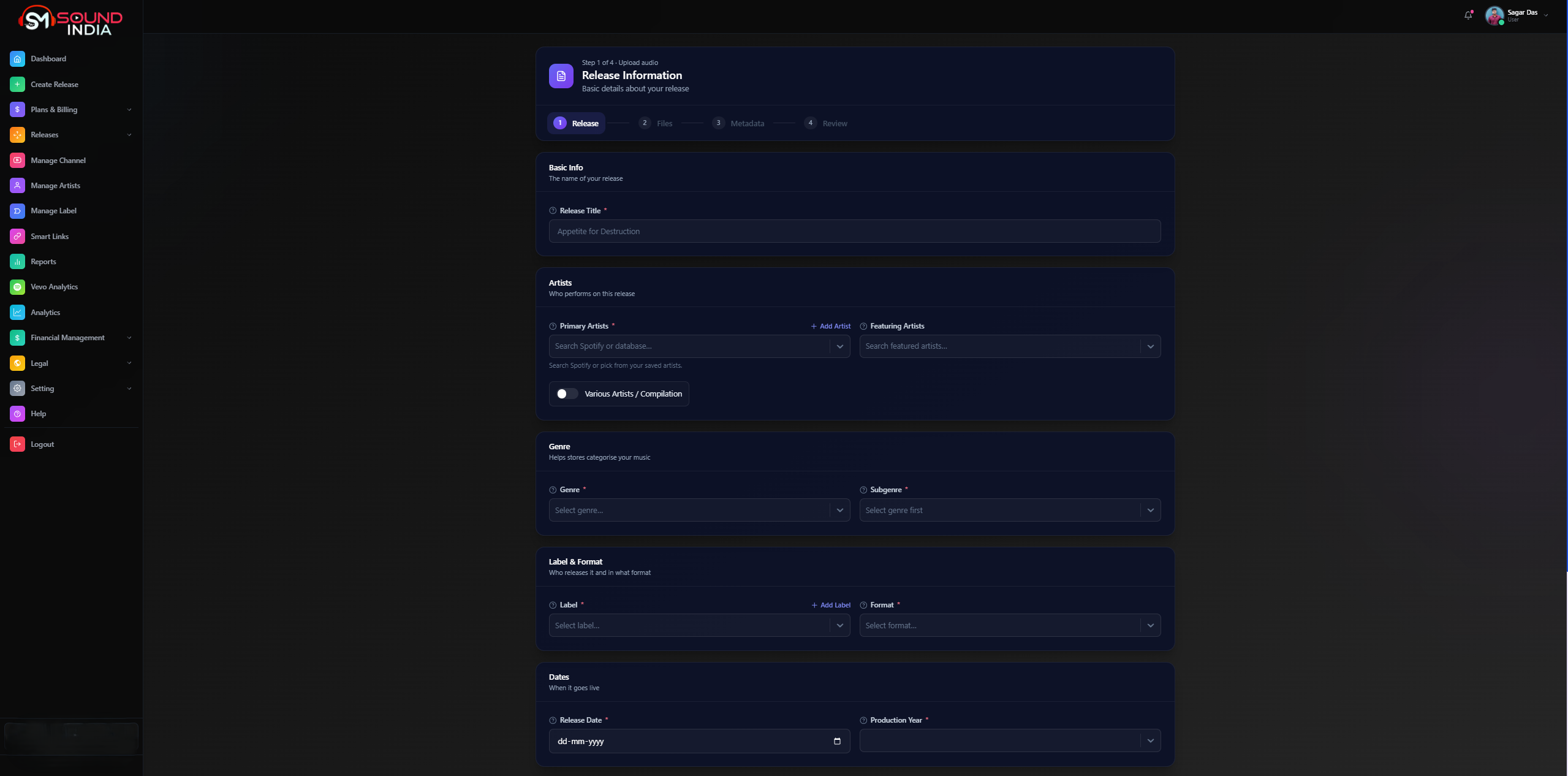
Releasing a song on SMSound India takes four steps inside your dashboard. This guide walks through each one, explains every field, and lists the mistakes that most often hold a release back. Fields marked with * are required.
- ReleaseTitle, artists, genre, label, dates and copyright lines
- FilesCover art and audio file
- MetadataTrack type, credits, language and lyrics
- ReviewCheck every field, then submit
Before you start: keep your cover art (JPG) and final master (WAV) ready, and have the names of the lyricist, composer, producer and performers written down. Having these at hand saves you from stopping halfway.
Step 1: Release information
This step covers the basic details of your release. Fill in each section from top to bottom, then press Continue.
| Field | Required | What to enter |
|---|---|---|
| Release Title | * | The name of your release. For a single, use the exact song title. |
| Primary Artists | * | Search for the artist on Spotify or pick one from your saved artists. Use Add Artist if the artist is not listed. |
| Featuring Artists | Add any guest artists who appear on the release. | |
| Various Artists / Compilation | Switch this on only if the release is a compilation with different artists. | |
| Genre | * | Pick the genre that best describes the music. Stores use it to categorise your release. |
| Subgenre | * | Choose your genre first, then the subgenre list becomes available. |
| Label | * | The label that releases the music. Use Add Label to create a new one. |
| Format | * | The release format, for example single, EP or album. |
| Release Date | * | The date your release goes live, in dd-mm-yyyy format. |
| Production Year | * | The year the recording was produced. |
| P Line | * | Sound recording ownership line, such as ℗ 2026 Artist Name. |
| C Line | * | Copyright ownership line, such as © 2026 Artist Name. |
| Catalog Number | Your own internal reference number. Optional. |
Tip: The P Line covers the sound recording and the C Line covers the composition and artwork. Both usually carry the year and the name of the owner.

Step 2: Upload your files
Upload your cover art and your audio file on the same page. Each file shows an Uploaded badge once it is in, and you can use Replace or Remove to change it. When both are ready, the page shows Both files are ready and you can continue.
Cover art
JPG only
Exactly 3000 × 3000 px
Audio track
WAV only
16-bit, 44.1 kHz, maximum 100 MB
Check your files first: Cover art that is not exactly 3000 × 3000 px, or audio in MP3 or another format, will not be accepted. Export your final master as a 16-bit, 44.1 kHz WAV before you upload.

Step 3: Track metadata
Here you describe the track itself. Accurate metadata decides how stores display and recommend your music, so take your time with this step.
Track type
- Primary Track Type *: usually Music.
- Secondary Track Type *: choose the option that fits your track.
- Instrumental *: choose Yes only if the track has no vocals.
Track identity
- Title *: the track title. It is taken from the release title you entered in Step 1.
- Remixer: fill this in only if the track is a remix.
Credits
Credits record who made the track. Write full names the same way each time.
- Lyricist * and Composer *
- Performer *: press Add Performer for each person who performs on the track.
- Producer *
- Publisher, ISRC and UPC: optional. Add your own codes here if you already have them.
Distribution settings
- Preview Start: the second at which the store preview begins, for example 45. Pick the strongest part of the song, usually the chorus.
- Explicit *: choose Yes if the track contains explicit language.
Language and lyrics
- Track Title Language * and Lyrics Language *: select the language correctly. For a Bengali song, choose Bengali for both.
- Lyrics: optional. Paste the full lyrics, or write Instrumental for a track without vocals.

Step 4: Review and submit
The last page shows a summary of your release with the cover art, audio preview, artists, metadata and credits. A completion bar and a Validation panel show which required fields are done and which are still missing.
If anything is missing, a fields need attention box lists exactly what to fix. Use Back to return to an earlier step, complete the missing fields, and come back to this page. When nothing is left, press Submit release.
Read before you submit: Check the title, artist names, release date and language once more. Small spelling mistakes in artist names are the most common reason releases end up under the wrong profile on stores.

Quick checklist
- Cover art is a JPG, exactly 3000 × 3000 px
- Audio is a WAV file, 16-bit, 44.1 kHz, under 100 MB
- Primary artist, genre, subgenre, label and format are selected
- Release date and production year are set
- P Line and C Line are filled in
- Lyricist, composer, performer and producer are added
- Title language and lyrics language are selected
- The Review page shows no fields that need attention
Need help?
If a field is unclear or a file will not upload, our team is here to help. Write to us and include your release title so we can find it quickly.